How to Make an AI Rap Video Step by Step
Follow the full photo-to-rap workflow: prepare portraits, choose a preset, generate a clip, add audio and export for TikTok or Instagram Reels.
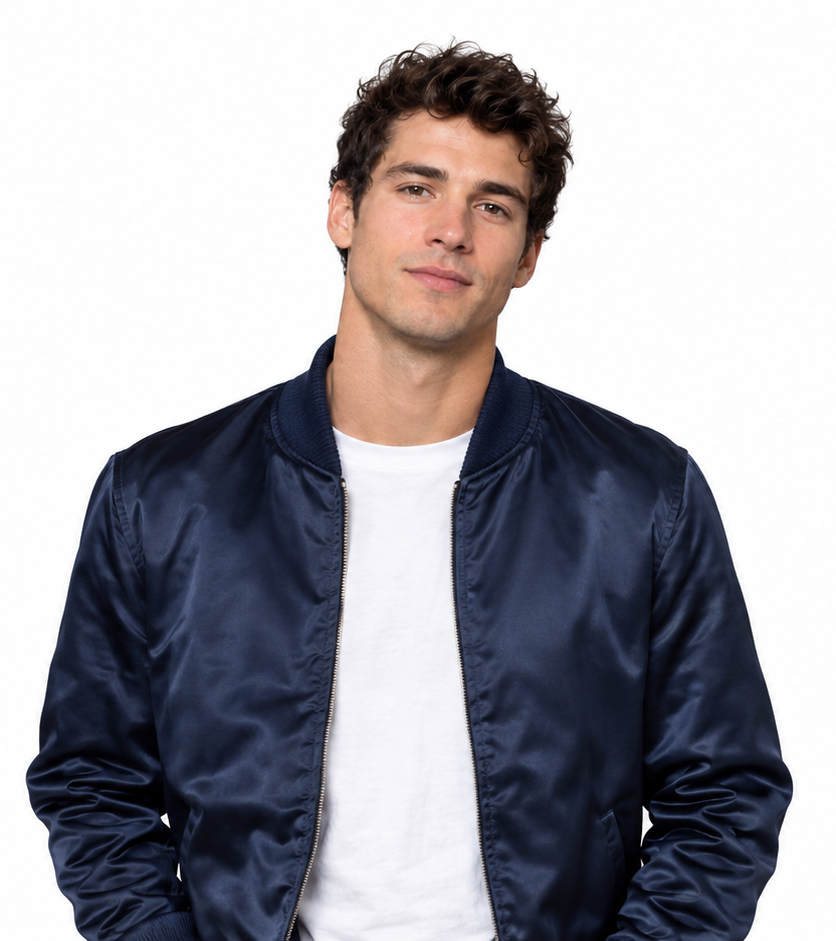 +
+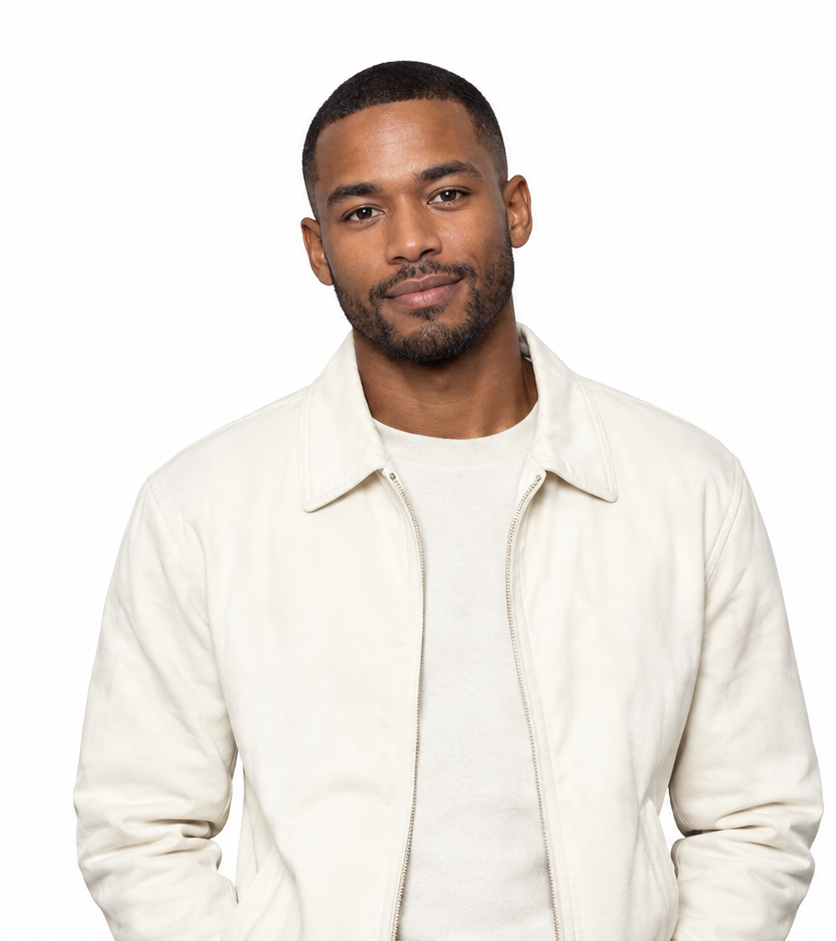 →
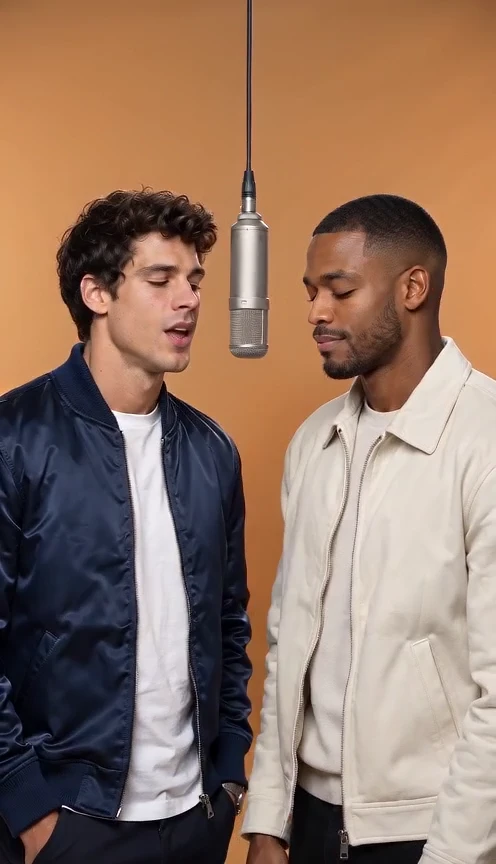
→
Choose the people. Direct a short exchange. Finish on the beat.
What you need to make an AI rap video
Prepare one clear portrait per person and decide whether you want a shared-stage duo, alternating shots or a solo clip.
Choose the people
Prepare one portrait per person, with a visible face and shoulders. Use single-subject images for clear role assignment. A search for ‘how to make AI rap video’ usually starts with the input question: do you have separate portraits, a shared picture or no reference at all? Use two separate portraits for the duo workflow. Save the originals before cropping, and download only reference files you have permission to use. The image route you choose should match what those pictures already show.
Choose the performance
Choose a shared-stage duet, alternating shots or one solo performer before you write the movement. To make an AI rap video, decide the performance before selecting advanced settings. A rap video on phone works better when both faces fit a readable vertical frame. Compare the portraits at similar scale and choose one lead gesture. If you plan several versions, download each approved output with a descriptive name so you can compare the same people and composition later.
Prepare the track
If you already have a rap recording, choose a short section first and plan a simple beginning and ending around it. Treat audio sync as an editing task with a clear reference point. The portraits supply appearance, not the precise timing of a recording. Download the chosen audio from an authorized source or use an available platform sound during publishing. An AI rap video from two photos can contain generated audio, but that does not mean the output includes your selected commercial song.
Make an AI rap video from photos in four steps
Upload separate portraits, choose the scene and output settings, then generate and download your clip.
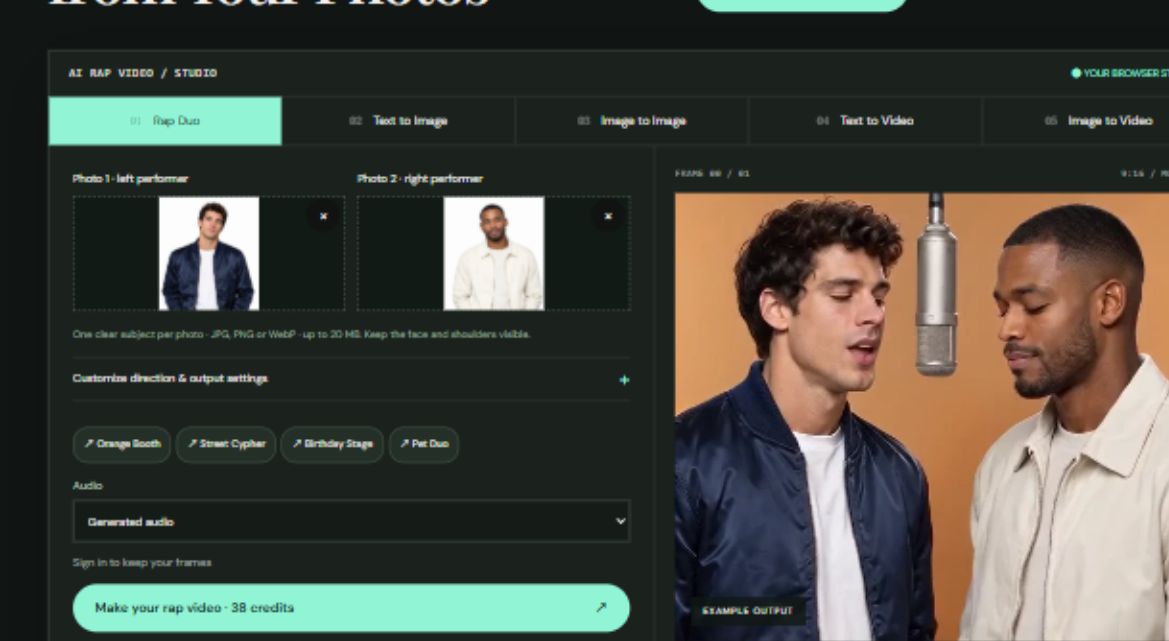
Upload each person
Upload Photo 1 on the left and Photo 2 on the right. Check the displayed thumbnails before proceeding. For a workflow answering ‘how to make AI rap video,’ check each upload separately before submitting. The portraits should show readable eyes, mouth and shoulders. A montage of several faces in one upload slot makes identity harder to assign. Keep the original files available so you can recrop them, and download a local reference copy if the picture currently exists only in an authorized cloud album.
Select the preset
Choose Orange Booth, Street Cypher, Birthday Stage or Pet Duo. You can edit the supplied direction. An AI rap video from two photos does not need both portraits to have been taken in the same room. Choose the shared preset, then inspect how the lighting and spacing fit together. Start with a restrained studio setup. Download an approved version before testing a different stage; the saved clip becomes a practical comparison when you decide whether the new set helps.
Set frame and duration
Select 9:16, 16:9 or 1:1, then choose a supported duration and audio setting. Review the updated credit cost. When you make an AI rap video, choose the intended aspect ratio at generation time. A rap video on phone is easier to review when you do not have to rotate or zoom to see the partner. Keep space around the portraits and the microphone. Download the file in its generated proportions rather than stretching a wide performance into a narrow frame.
Generate and download
Sign in, generate and wait for the real task status. Play or download the result from the panel; your account history keeps the task available. Review the quote, sign in and submit only when the inputs are ready. This sequence for ‘how to make AI rap video’ keeps the portraits and settings together through the credit purchase step. Wait for the result panel, play the complete output and download the version you want to keep. Do not start another paid generation merely because the first task is still processing.
Write a prompt to make an AI rap video
Describe the people, their positions, the stage and one simple sequence of actions.
Lock the identities
Name each person by their uploaded photo and fixed side of the frame. Describe an AI rap video from two photos with one reference on the left and one on the right. Name visible details from the portraits without asking the model to blend them. Keep a readable gap between the people. Download a clear starting still when you need to compare a later result, and check each face independently before judging the whole performance.
Describe the scene
Describe the stage, one microphone and consistent lighting. Keep unnecessary props out of the face area. To make an AI rap video in a shared studio, specify one backdrop, one light direction and one camera view. A rap video on phone should still show enough shoulder room for the exchange. Keep the portraits in their assigned positions and avoid adding a second location inside the same shot. Download the selected output before changing both the lighting and the stage.
Plan the gestures
Plan a nod, a lead gesture, a response and a closing pose. Use one continuous shot rather than several camera moves. A practical answer to ‘how to make AI rap video’ is to request fewer actions, not a longer string of gestures. Give the lead one small movement and the partner a response. The portraits should remain recognizable at the beginning and end. Download the first acceptable version, then compare any revision against it with the sound muted to judge visual changes clearly.
Create a short rap-performance scene using the two uploaded portraits. Photo 1 is the performer on the left; Photo 2 is the performer on the right. Keep their faces, hair and clothing distinct. Place them in a seamless warm-orange studio with one hanging silver microphone between them. Frame both from the waist up with a locked camera and soft frontal light. Begin with both nodding to the rhythm. Let the left performer lead with small open-hand gestures while the right responds with a smile and shoulder movement. Finish with both looking toward the camera. Keep their positions fixed and their faces visible throughout.
Add music after you make an AI rap video
Place the clip and track on an editing timeline, align the first beat, then trim the ending.
Import clip and song
Create an editing project and import both the video and your selected recording. Put the recording on its own audio track. Start audio sync by importing the generated video and your selected recording as separate tracks. Download the video before opening an editing project, and keep an untouched copy. The portraits establish appearance while the soundtrack establishes the musical reference. If the clip already has generated sound, listen to it once before deciding what to mute or retain in the final mix. Audio sync is easier after you make an AI rap video with one readable gesture. Keep the portraits visible while marking that gesture in the timeline.
Mark the strong beats
Listen for a strong downbeat and mark it on the timeline. Choose a start that fits the first visible action. For audio sync, mark a strong beat that matches a visible gesture rather than assuming the first frame is the right start. A rap video on phone can use the same timing method in a mobile editor. Zoom into the timeline, compare the gesture with the waveform and download a review export before committing to the full finished version. A checklist for ‘how to make AI rap video’ should treat audio sync as a separate review, with a beat marker that remains visible when you trim the generated shot.
Align a visible gesture
Slide the video so a clear nod, gesture or cut lands on the beat. Trim the start rather than stretching faces or movement. An AI rap video from two photos may look rhythmic while its mouth shapes differ from your chosen words. Audio sync can align a cut or a nod, but sliding the soundtrack cannot create new lip movements. Compare both portraits during the preview. Download a short review version if you need to inspect the timing away from the editor's interface. For an AI rap video from two photos, compare audio sync after the final crop. Check both portraits rather than judging only the leading performer.
Balance and export
Mute or lower the original audio to avoid two competing tracks. Trim the ending, check the volume and export. Matching mouth shapes to exact words needs audio-driven animation; moving a soundtrack does not create lip sync. Before you make an AI rap video public, check volume at a comfortable listening level. Audio sync should leave one intended main soundtrack, not two competing recordings. Review the full clip from start to finish and download the final export only after you have checked its opening and ending. Retain your editing project if you expect to change captions or music later. To make an AI rap video with a clean ending, trim where the last action settles. Audio sync should still feel complete when the picture holds for a moment.
Export when you make an AI rap video on a phone
Use a mobile browser to generate the clip, then export a vertical version for short-form feeds.
Save to your phone
Open the result’s Download action and save it through your browser’s file or share controls. When learning how to make AI rap video on a mobile device, confirm where the browser stores the completed file. Download the video, open it in the phone's file or photo app and play it once. If you cannot find it, check the browser's download list before generating again. The saved file should be the starting point for the final edit.
Frame both faces
Use a vertical composition for a phone feed while keeping both faces visible. Reframe or regenerate a landscape clip instead of stretching it. A rap video on phone needs readable portraits even when platform controls cover the edges. Keep faces away from likely caption and interface areas. Audio sync should remain intact when you crop or trim, so check the soundtrack after each edit. Download a preview in the intended frame and inspect it at normal size rather than only inside an enlarged editor. If your question is ‘how to make AI rap video without rushed cuts,’ review audio sync on the target screen. A rap video on phone should remain readable at ordinary playback size.
Add readable captions
Add names and short captions in a clear area above or below the faces. Preview on a small screen before sharing. Captions can identify the people without asking the generator to draw lettering on their clothes. Add names after you make an AI rap video, keep text away from the portraits and preview it against the brightest frame. Download the captioned version separately from the clean original so you can adapt the same performance for another feed or an alternative language later.
Make an AI rap video look without AI tools
Use an editing template with existing footage or film a two-person performance and cut it to music.
Use an editing template
Open a template, inspect its sample and replace the required photo or video slots. Check the included sound and export settings. A search for ‘how to make AI rap video’ may also lead to a template workflow. That route can arrange existing portraits and footage without inventing a new performance. Check the template's required slots and preview its sound before replacing the media. Download a test export to check the selected assets and output options, because a free editor can still contain paid templates or effects.
Film and edit a duo
Record a two-person performance against a simple backdrop, then cut the footage to your track. This produces a performance from filmed motion rather than invented animation. Filming a real exchange is another way to make an AI rap video look without generating the movement. Frame the performers, record a short sequence and use audio sync in the edit. Keep reference portraits only if they help plan clothing or captions. Download or transfer the original footage before trimming, then preserve that source while you build the final sequence.
Fix common problems when you make an AI rap video
Clearer reference photos, smaller movements and simpler framing address common face and motion problems.
Faces change
Fix the left-right assignment and reduce head turns. Try a sharper portrait if the face is obscured. For an AI rap video from two photos, inspect whether a large turn hides facial features that the portraits never showed. Reduce the turn before changing the whole scene. This is a concrete troubleshooting step for how to make AI rap video with more stable identities. Compare the new beginning and ending with the saved original, then download the version that improves recognition.
Hands distort
Remove complex finger instructions. Ask for relaxed hands or a small single gesture. If gestures distort, simplify the hand action and keep it away from the face. Audio sync does not repair a malformed hand, so solve the picture before polishing the soundtrack. Use clearer portraits when the starting crop is ambiguous. Download the approved clip once the action is readable; repeated generation without a specific change makes the comparison less useful.
Framing feels crowded
Use a wider composition, leave a clear gap and reduce camera movement. Prepare a shared reference image when spacing remains unstable. A rap video on phone can feel crowded when the subjects move toward opposite frame edges. Widen the view or reduce their movement instead of stretching the result. After you make an AI rap video revision, check both portraits at the same moment in the shot. Audio sync and captions should be reviewed again if the final trim has changed.
Make an AI rap video with your photos now
Return to the duo preset with your photos, scene and timing ready.
Return to Rap Duo with two portraits, one stage and a simple motion plan. Review the settings, keep the draft through sign-in or checkout and use the result as the starting point for another version. Keep the selected portraits, stage and prompt in the existing workbench. An AI rap video from two photos should return to the same draft after a credit purchase, without starting another task automatically. Review the price, make the chosen version and download the finished file. Save the final settings beside it so the next attempt has a clear starting point rather than a completely different brief. Review those settings before you make an AI rap video again.
Make your rap video ↗Make an AI Rap Video FAQ
Can I make the video on a phone?
+
Use the browser workbench to upload from your photo library, generate the clip and download it before editing or sharing.
Should I prepare the rap audio first?
+
Prepare the audio first when the performance needs to match specific words. For a visual-only scene, you can add background music afterward.
How do I remove doubled audio?
+
Mute or lower the generated clip's audio when you place a replacement track under it, then adjust the final mix.
Does adding music fix lip sync?
+
Adding music aligns a soundtrack with the video; matching the mouth to particular words uses an audio-driven or performance-driven workflow.
Can I make the effect without AI?
+
You can film your own duo or edit existing photos and clips to the song. Those routes use your footage instead of generating new body movement.
How do I fix distorted hands?
+
Reduce the gesture, keep hands away from faces and simplify the camera direction before making another version.